

Description
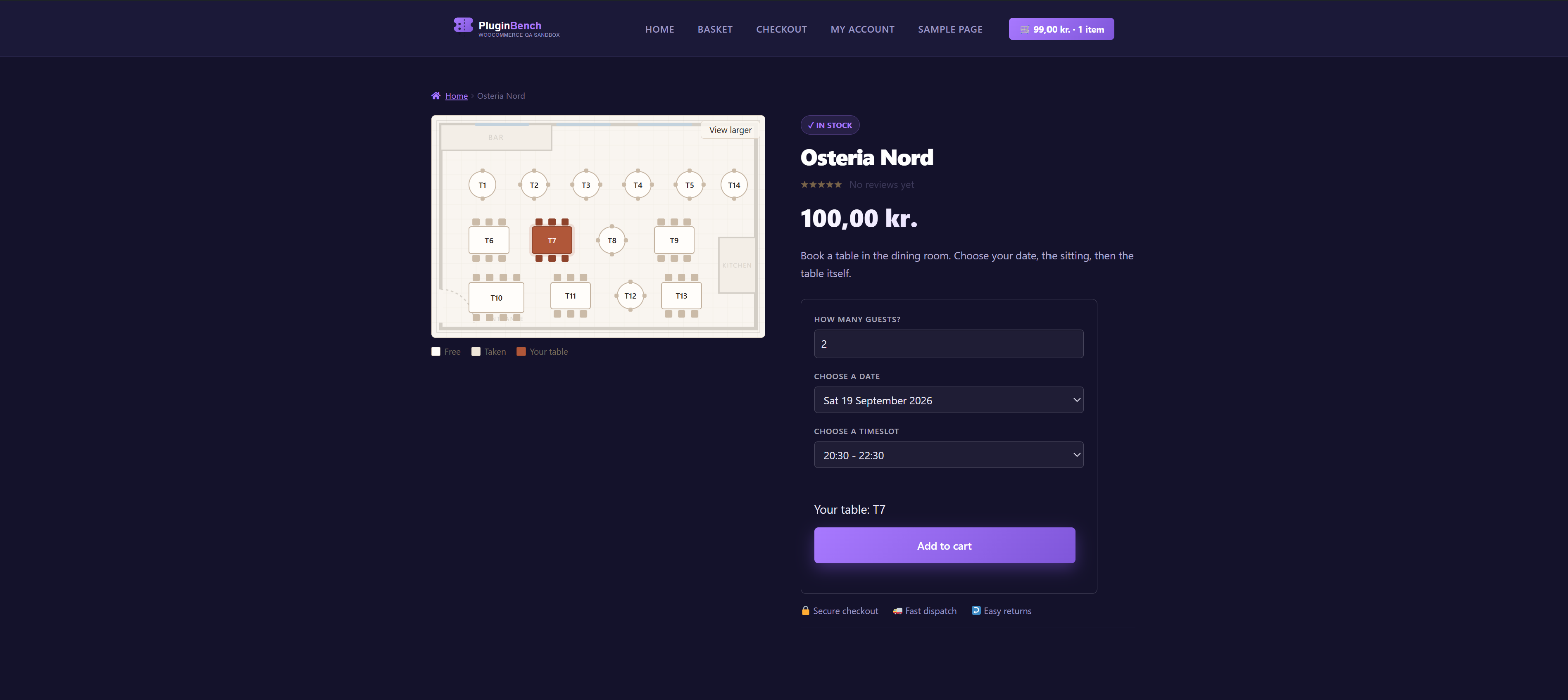
Seat & Table Booking adds one product type to WooCommerce: Booking venue. One product is one floor plan. Customers pick a date, a timeslot and a table straight off a picture of your room, pay through your normal checkout, and get a QR code that staff scan at the door from a phone browser.
Everything runs on your own site. There is no booking service to sign up for, no fee per reservation, and no account with anyone else. WooCommerce handles the payment, the order and the emails – there is no second checkout and no second dashboard.
Built for restaurants, cafés, bars, cinemas, theatres, concert venues, wedding halls, co-working spaces and anyone who sells a place in a room with a layout.
Who it is for
- Restaurants, cafés and bars – tables of different sizes and prices, several sittings an evening, and a table held back for walk-ins.
- Cinemas, theatres and concert venues – seat-by-seat booking from a seating chart, with a “find N seats together” button for the customer.
- Events with a fixed layout – a wedding, a gala dinner or a conference is a timeslot rule whose first and last day are the same.
- Co-working spaces and studios – desks and rooms booked by the hour or by the day.
Draw the room
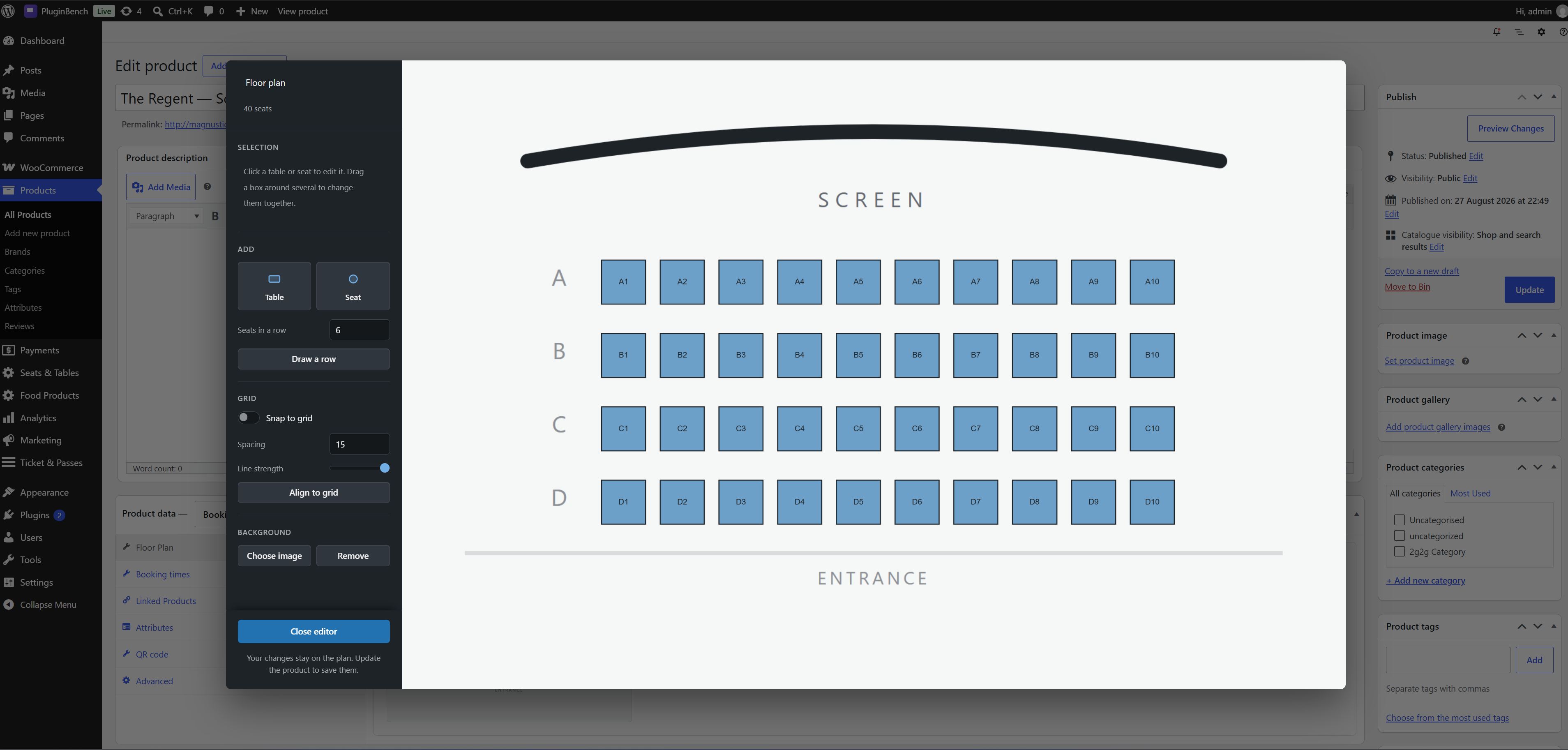
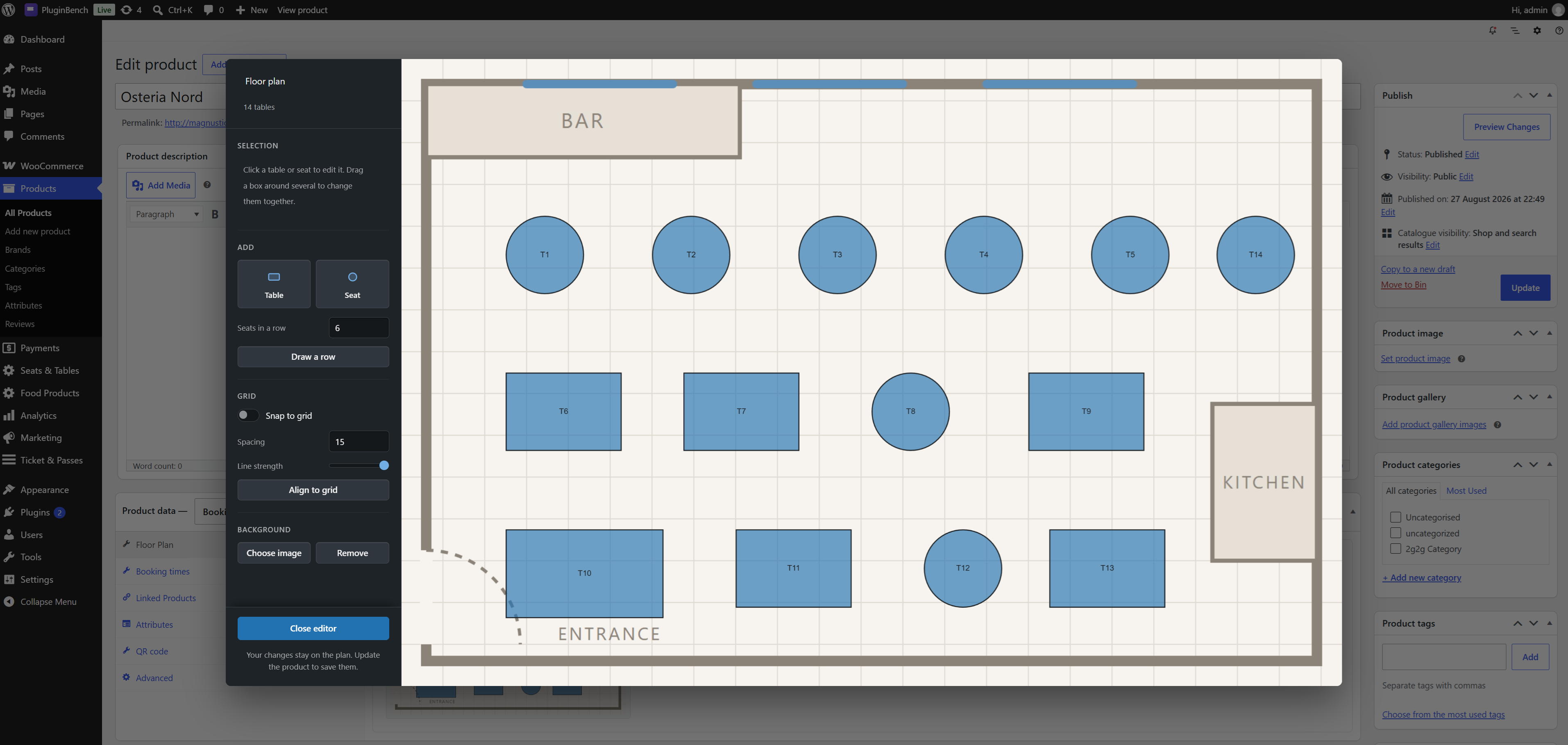
- A visual floor plan editor. Upload a photo or a drawing of the room and drag the tables onto it, with a grid, undo and rotation.
- A row tool that lays out a whole row of cinema-style seats in one go.
- Per-table price, label, capacity and an internal note only staff see.
- Recurring timeslots per weekday, with optional first and last dates.
- Blackout dates for a whole day or for a single sitting.
- More than one venue. Every Booking venue product is its own floor plan with its own timeslots, prices and settings, and one order can hold tables at several venues.
No double bookings
- A table goes on hold the moment it is added to the cart, for that exact date and sitting. Two customers racing for the last table cannot both win; the database refuses the second, and they are told the table has just gone.
- Abandoned carts free the table on their own. The hold lasts 15 minutes by default, set per site or per venue.
- Unpaid orders are released after a window you set, 60 minutes by default. Orders waiting on a bank transfer are left alone.
- Cancelled, refunded, trashed and deleted orders release their tables straight away and cancel their QR codes.
Check-in at the door
- A scanner page on your own domain, at
/table-check-in/. Full screen, no admin bar, nothing for door staff to get lost in. - No app to install. Any modern mobile browser works, with a flashlight toggle for a dark doorway and a type-in field for a desk without a camera.
- Colour-coded results you choose: checked in, not valid or already used, and invalid request.
- A check-in window, so a code only opens the door around its own sitting.
- A Scanner user role that grants check-in and nothing else in wp-admin.
- Every decision is made on your server, never on the phone, so a cancelled booking cannot be waved through.
- A REST check-in API underneath, off by default, so a third-party scanner app can use the same check-in.
Running it from wp-admin
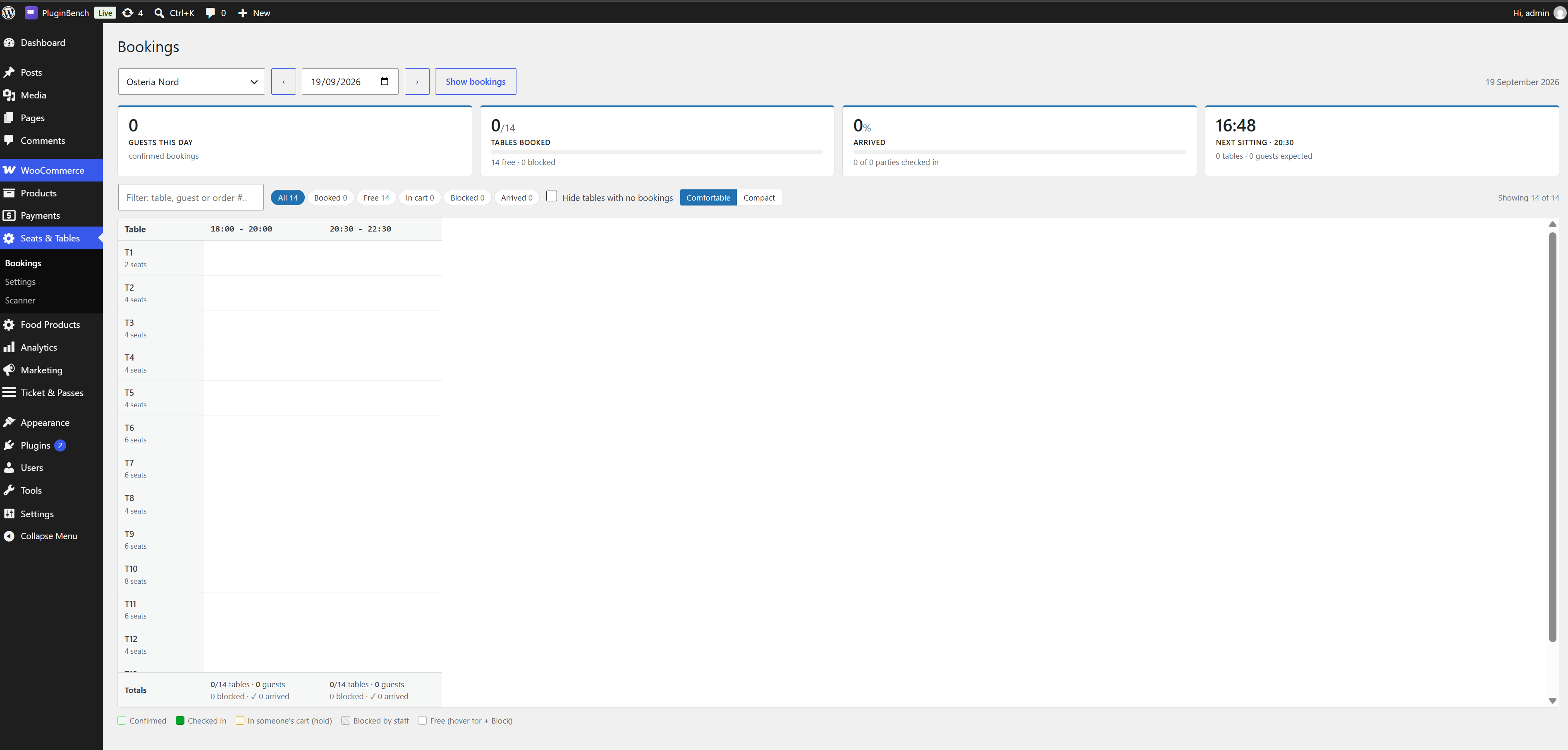
- A Bookings screen – every table against every sitting for a day, with guests, arrivals and a needs-attention bar. Check guests in, reset or resend a code, or release a booking from the same grid.
- Staff blocks. Hold a table back for a walk-in with one click, and it disappears from the floor plan for that sitting.
- A Reservation column on the WooCommerce orders list.
- Per-venue QR design – colours, an optional logo and a caption, with a redraw for codes already issued.
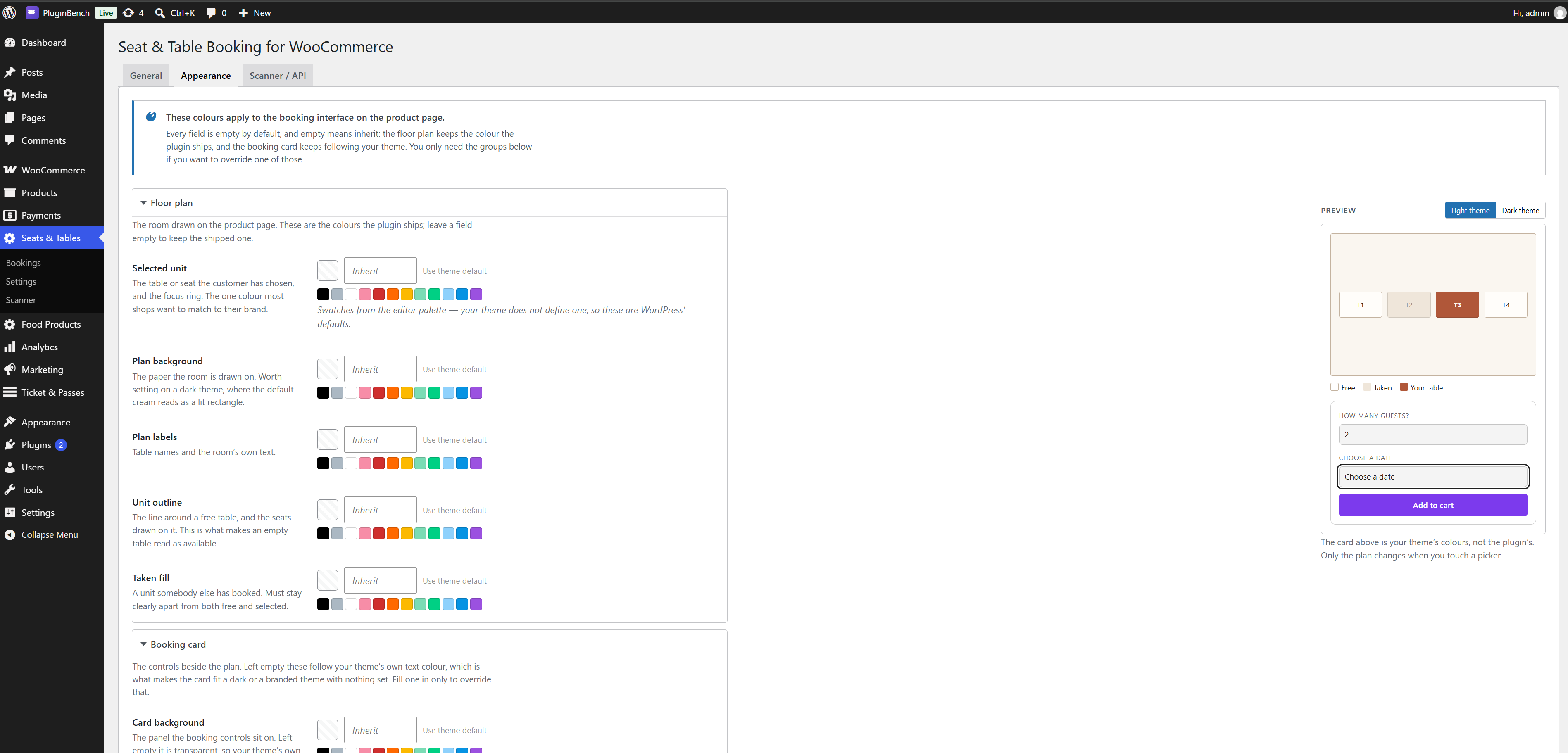
- An Appearance tab with fifteen optional colour overrides, a live preview and a contrast warning. Left alone, the booking form follows your theme’s own colours.
- Shop Manager friendly. Everything is gated on
manage_woocommerce; nobody needs an Administrator account to run service.
What your customers get
- Only bookable dates and times. Closed days, full sittings and sittings inside the booking notice are never offered.
- Tables too small for the party are not offered, and booked tables are visibly unavailable.
- A picker that works with a keyboard and a screen reader.
- The table, date and time on the cart, the checkout, the order and the order emails, plus an arrival note you write per venue.
- The QR code in the confirmation email, on the thank-you page and in the order under My Account.
Customer files stay private
QR code images are not reachable at a guessable public URL. They live in an uploads folder named from a site secret, closed to direct access, and are served only through a link signed for that exact code, to shop staff, or to the customer who placed the order. Reset on the Bookings screen changes the signature too, so it revokes a leaked link. Nothing to configure.
Privacy
The plugin keeps no customer details of its own. A booking records the venue, table, date, sitting, party size and the WooCommerce order it belongs to; the guest’s name and email stay on the order, where WooCommerce’s own personal data export and erasure cover them.
External services
None. The plugin makes no outbound requests, sends no analytics or telemetry, and needs no account anywhere. QR codes are generated on your own server by the bundled library, and every script and stylesheet is served from your own site.
Nothing to maintain
A booking is free again the moment its hold expires; nothing waits for a background job. A five-minute WP-Cron event tidies expired holds away and releases unpaid orders.
Works with
- WooCommerce HPOS (High-Performance Order Storage), the Cart and Checkout blocks and the classic shortcode cart and checkout.
- Any theme. The booking form replaces the add-to-cart form on the product page and uses WooCommerce’s own notices and buttons.
- Translation ready – every string is translatable, and the plugin ships a POT file.
- No build step. All PHP, JavaScript and CSS ships readable and editable.
Requirements
- WooCommerce, installed and active. WordPress will not let the plugin activate without it.
- PHP 8.0 or newer.
- HTTPS for the scanner, because phone browsers only give camera access to secure pages.
Source Code and Third-Party Libraries
This plugin ships no compiled or obfuscated code. Every PHP, JavaScript and CSS file
written for this plugin is included in readable, editable form, and no build step
(npm, webpack, Composer, etc.) is required to run or modify it.
The following third-party libraries are bundled unmodified. Each is the upstream
distribution file, at the version listed:
- endroid/qr-code 4.8.2 – QR code generation – https://github.com/endroid/qr-code – MIT
(bundled in inc/qr/lib/qrcodegen/, installed with Composer, together with its
dependencies bacon/bacon-qr-code 2.0.8 (https://github.com/Bacon/BaconQrCode) and
dasprid/enum 1.0.7 (https://github.com/DASPRiD/Enum), both BSD-2-Clause) - Fabric.js 7.4.0 – the admin floor plan editor canvas – https://github.com/fabricjs/fabric.js – MIT
(inc/product-type/js/lib/fabric.min.js, exactly as published on npm as
fabric/dist/index.min.js; the project tags this release v740, not v7.4.0:
https://github.com/fabricjs/fabric.js/tree/v740) - jsQR 1.4.0 – QR decoding in the check-in scanner – https://github.com/cozmo/jsQR – Apache-2.0
(inc/scanner/js/jsqr.js)
The Composer-installed library can be regenerated from its composer.json with
composer install; the two JavaScript libraries are the unmodified dist files
published by their projects on npm, and their readable sources live in the linked
repositories.
Screenshots

Installation
1. Install and activate
In wp-admin go to Plugins > Add New > Upload Plugin, choose the zip and click Install Now, or upload the unzipped folder to /wp-content/plugins/ over FTP. Activate from the Plugins screen with WooCommerce already active. Activation creates the plugin’s database tables and refreshes permalinks, so the scanner URL works straight away.
2. Create a venue
Products > Add New, then pick Booking venue from the Product data dropdown – the same dropdown that holds Simple and Variable.
3. Draw the floor plan
On the Floor plan tab, upload a picture of the room and draw the tables or seats on it. Give each one a label, a price and a capacity.
4. Set the booking times
On the Booking times tab, add the weekly timeslots and any closed dates. Publish, and customers can book from the product page.
5. Give door staff access
Edit the user under Users and set their role to Scanner. They can then open /table-check-in/ on a phone and check guests in, and see nothing else in wp-admin. Administrators and Shop Managers already have access.
Settings at a glance
Settings live under Seats & Tables > Settings in three tabs. The defaults work; only change what you need.
- General – the hold duration, the unpaid-order release window, the booking notice customers must give, and the check-in window.
- Appearance – fifteen optional colour overrides for the booking form, with a live preview.
- Scanner / API – the built-in scanner switch, the API switch, the three scan-result colours, and an API endpoint reference.
FAQ
-
Does it need WooCommerce?
-
Yes. The plugin adds a WooCommerce product type and will not activate without WooCommerce active.
-
Are there any per-booking fees?
-
No. There is no external service and nothing to sign up for. You sell through your own WooCommerce checkout, and what you charge is what you keep.
-
Can one table be booked twice in the same timeslot?
-
No. Adding a table to the cart creates a short-lived hold on that exact table, date and timeslot, enforced by a unique index in the database, so the second of two racing customers is told the table has just gone. Holds that are never paid for expire on their own.
-
Which timezone are bookings in?
-
The site’s timezone, as set under Settings > General. Timeslots, booking dates, the booking notice and the check-in window all use it.
-
What happens if a customer abandons the cart?
-
The hold expires after the configured number of minutes (15 by default) and the table is bookable again. If the customer comes back to a cart with an expired hold, the line is removed and they are told why. Removing a line and pressing “Undo” takes the hold again if the table is still free.
-
What happens to an order that is never paid for?
-
Its tables are released after the window set under Seats & Tables > Settings (60 minutes by default), the order is cancelled and a note is added to it. Orders on hold awaiting a bank transfer are never released automatically.
-
When are the check-in codes issued?
-
When the payment goes through, and when you mark an order Completed by hand. Processing on its own is not enough, because cash on delivery sets that status before anyone has paid. If your shop takes bank transfers and you set orders to Processing yourself once the money lands, add this to your theme’s
functions.phpto issue the codes at that point too:add_filter( 'stbk_issue_codes_on_processing', '__return_true' );Do not use it on a shop that also offers cash on delivery: those orders reach Processing unpaid, and the plugin cannot tell the two apart afterwards.
-
Does it depend on WP-Cron?
-
No. Expired holds are treated as free the moment they expire; the five-minute WP-Cron event only tidies the rows up. The unpaid-order release runs on that event too, so on a site where WP-Cron is disabled it runs whenever the system cron calls
wp-cron.php. -
Can staff hold a table back for a walk-in?
-
Yes. Open Seats & Tables > Bookings, pick the venue and the date, and press “+ Block” in the empty cell for that sitting. The table disappears from the floor plan for that sitting until the block is released.
-
Do door staff have to install an app?
-
No. The scanner is a web page that uses the phone camera. It needs a browser and HTTPS, which is what the camera API requires.
-
Who is allowed to check guests in?
-
Users with the Scanner role, and users with the
manage_woocommercecapability, which covers Administrators and Shop Managers. A Scanner user cannot see orders, products or the dashboard. -
What does the scanner refuse?
-
A cancelled code, a code already used, and a code scanned outside its check-in window. The reason is shown on screen.
-
Can I use my own scanner app instead?
-
Yes, once you turn on Enable API under Seats & Tables > Settings > Scanner / API – it is off by default. The app authenticates with a WordPress Application Password and calls
stbk/v1/scanner/checkin/{id}the same way the built-in scanner does. The settings page documents every response.A real account password is not accepted, and the site must be on HTTPS, because that is what WordPress itself requires before it will accept an Application Password. The built-in scanner is unaffected either way; it uses the staff member’s own login.
-
What if a guest loses the email with the QR code?
-
Staff can resend it from the Bookings screen. The code is also on the thank-you page and in the order details under My Account, so a signed-in customer can pull it up there.
-
My site is behind Cloudflare or a reverse proxy. Do the rate limits still work?
-
The add-to-cart and scanner-login limits count requests per visitor IP, taken from
REMOTE_ADDRonly. Forwarded headers are ignored, because any caller can forge them. Behind a proxy, configure the web server to put the real client address intoREMOTE_ADDR(Apache mod_remoteip, nginx real_ip, or Cloudflare’s own instructions), trusting only the proxy’s addresses. Otherwise all visitors share one limit. If the server cannot be changed, thestbk_client_ipfilter can return the verified address instead. -
Does it work with HPOS and the block checkout?
-
Yes. The plugin declares compatibility with WooCommerce High-Performance Order Storage and reads and writes orders only through the WooCommerce order API. It works with the Cart and Checkout blocks and with the classic shortcode cart and checkout.
-
What happens to my data if I delete the plugin?
-
Settings, the Scanner role and the scheduled event are removed. Bookings, floor plans and QR data are kept, so removing the plugin to test a conflict cannot wipe your reservations.
If you do want all of it gone, add this to
wp-config.phpbefore you delete the plugin:define( 'STBK_REMOVE_ALL_DATA', true );That drops the plugin’s database tables and deletes the generated QR images. It cannot be undone. Take a backup first.
-
Does deactivating remove anything?
-
No. Settings and bookings are left alone, and reactivating picks up where you left off.
Reviews
There are no reviews for this plugin.
Contributors & Developers
“Seat & Table Booking for WooCommerce” adalah perisian sumber terbuka. Orang-orang berikut telah menyumbang kepada pemalam ini.
Penyumbang
Translate “Seat & Table Booking for WooCommerce” into your language.
Berminat dalam pembangunan?
Layari kod, periksa repositori SVN, atau langgani log pembangunan dengan RSS.
Changelog
The most recent releases are below. The full history is in changelog.txt in the plugin folder.
1.9.1
- Security: nonces on the Bookings screen are now tied to what they act on: block to the table/seat, date and sitting; release to the booking; check-in, reset and resend to the order, booking, date and sitting of the code.
- Fix: if a QR preview’s or a check-in email’s link fails to sign, the preview or the email is no longer lost outright – the preview reports the failure normally, and the email still sends, just without the image.
- Hardening: fixes from a wordpress.org review pass (query annotations, a translators comment on the venue save error, an ABSPATH guard on every file) and code tidy-ups and docblocks throughout. No visible change.
1.9.0
- Security: check-in QR images are now private. They used to sit in a public uploads folder whose file names were the codes themselves. They now live in an uploads folder named from a site secret, closed to direct access, and are served only through a link signed for that exact code, to shop staff, or to the order’s owner. Reset on the Bookings screen changes the signature too, so it still revokes a leaked emailed link. The old public folder is removed on upgrade, so QR images in emails sent before 1.9.0 stop loading; the codes still scan, and Resend sends a working copy.
- Security: rate limits on add-to-cart and scanner login are counted atomically, so parallel requests can no longer slip past them, and the visitor IP is read from
REMOTE_ADDRonly. Forwarded headers are ignored because any caller can forge them. Behind a proxy, see the new FAQ entry, or return the verified address from the newstbk_client_ipfilter. - Security: confirming a booking at checkout now requires the exact slot the customer held, in the customer’s own session. A resubmit after a declined card, and a guest who logs in or creates an account at checkout, keep their own table. Holds restored from a saved cart respect both the session and the venue’s hold time.
- Fix: a camera fault in the scanner could show a check-in that never happened.
- Fix: a failed venue save now rolls back instead of leaving the layout and schedule half written, and the notice and the log say why it failed. On MyISAM tables, which cannot roll back, the failure is reported.
- Fix: the database version is recorded only once every booking table and column is verified.
- Fix: a sitting with live bookings or active codes can no longer have its times changed or be deleted, which would strand those bookings. Its weekdays and dates stay editable so it can still be ended, and any booking no longer covered shows in the day view’s orphan list.
- Fix: a table or seat with an upcoming booking can no longer be removed from the floor plan. Staff blocks do not count, so blocking a table and then removing it retires it cleanly.
- Fix: issuing codes is more robust. A retry fills in code groups that are missing, a unit’s booking is looked up only within the order being issued, revoking runs under the same lock as issuing and retries an order that is busy, and the order’s stored status is re-read before codes are reactivated.
- Fix: QR redraw jobs no longer run twice or overwrite one another, keep running on the Action Scheduler 3.x bundled with older WooCommerce versions, and stop retrying after ten minutes if the database lock never frees.
- Fix: the check-in lead time is kept between 0 and 1440 minutes.
- Fix: the cleanup of unpaid bookings pages at the database and reads the newest booking orders first, so an abandoned checkout is released on time on a shop with a long order history.
- Fix: deleting a venue always removes its bookings, sittings and codes. Its QR files are removed best-effort, and anything left over is logged.
- Fix: releasing a booking is scoped to its venue, date and status.
- Fix: the order list matches QR codes by sitting and shows venue and sitting summaries separately.
- Fix: on the booking form, changing the date clears the old timeslot straight away, and a failed availability request that has already been superseded no longer shows an error.
- Fix: the scanner’s history groups check-ins by the site’s local date.
Older releases: see changelog.txt.